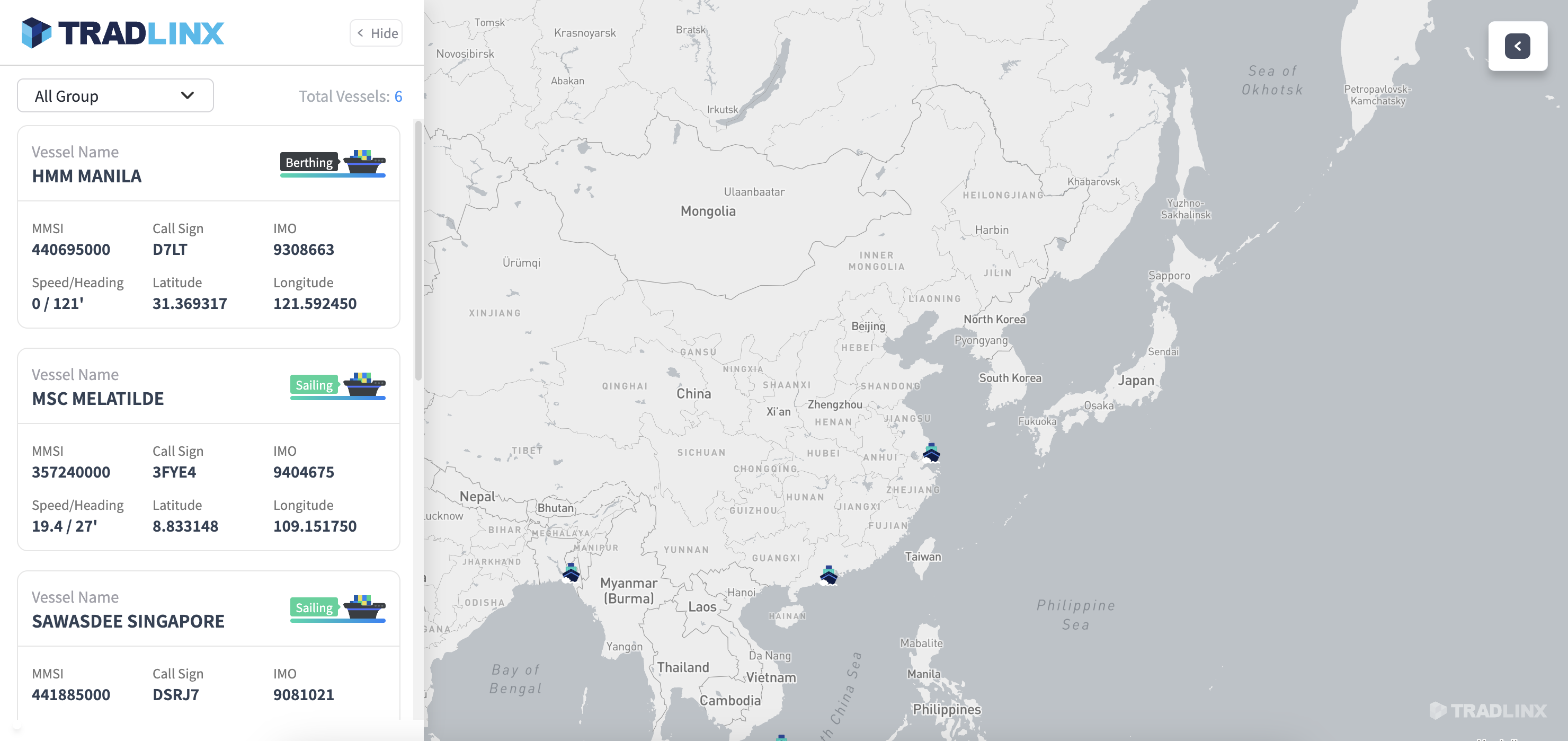
Vessel Embedded MapView
- Vessel Embedded MapView feature allows seamless integration of the TRADLINX Ocean Visibility map page (
https://app.tradlinx.com) into your own services. - It is supported in environments that can run web browsers and
<iframe />elements. - Fully compatible with modern browsers such as Chrome and Microsoft Edge.
- For best performance, we recommend the following dimensions based on usage:
- With vessel card list view (expanded): 1440 X 900
- Map-only view (without vessel card list): 800 X 600
🔔 API Update & Backward Compatibility Notice
The TRADLINX Ocean Visibility API may be updated from time to time to improve service quality, expand data coverage, and introduce new features.
When updating the API, we prioritize the stable operation of existing integrations and follow backward-compatible change principles, such as adding new fields.
Accordingly, we recommend that client systems be implemented in a backward-compatible manner so that they can continue to operate normally even when unknown or newly added fields are included in API responses.
If any changes may affect existing integrations, we will provide advance notice.
Request Format
JSON Web Token Issuance
- URL:
https://api.tradlinx.com/partners/auth/authenticate - HTTP Method: POST
- Header
- tx-clientid: Your issued CLIENT ID
- tx-apikey: Your issued API KEY
- ⚠️ Important: API_KEY and CLIENT_ID are sensitive credentials. Do not expose them publicly. If compromised or leaked, the partner is fully responsible for any resulting security breaches.
TRADLINX Ocean Visibility Vessel Embedded MapView Server
- To retrieve data from the Vessel Embedded MapView server, make a request using the following specs:
- URL
https://app.tradlinx.com/partner-mapview/api/vessel
- HTTP Method: POST
- Body
- Form Data (Content-Type: application/x-www-form-urlencoded)
| Field | Type | Description | Default |
|---|---|---|---|
| *authorization | string | Authorization key | - |
| searchType | "keyword", "trackGroup" | Type of search query | "keyword" |
| searchValue | string | Value to search for | - |
| lang | "ko", "en" | Language selection | "ko" |
| *detail | "SHOW_ALL", "HIDE_TABS", "HIDE_ALL" | Method of displaying vessel details | "SHOW_ALL" |
| trackGroupFilter | boolean | Whether to apply the vessel group filter | true |
| startMode | "LIST", "HIDE_LIST", "DETAIL" | Initial state of the map view when loaded | "LIST" |
| controllers | string[] | Activate only specified controllers (if requested) | ["FULL_SCREEN", "DIMENSION", "LANG_SET"] |
| detailTabs | string[] | Activate only specified controllers (if requested) | ["PORT_CALLS", "SAIL_LOG"] |
searchType
| Value | Description |
|---|---|
| keyword | imo, mmsi, vesselName, callSign |
| trackGroup | Vessel Group Name |
searchValue
| Value | Description |
|---|---|
| keyword | Up to 50 entries, separated by commas (,) |
| trackGroup | Up to 50 entries |
detail
| Value | Description |
|---|---|
| SHOW_ALL | Show all vessel details |
| HIDE_TABS | Hide tabs in vessel details |
| HIDE_ALL | Hide all vessel details |
startMode
| Value | Description |
|---|---|
| LIST | Show vessel list when map view is loaded |
| HIDE_LIST | Hide vessel list and load map view only |
| DETAIL | Show details of the first vessel on load |
controllers
| Value | Description |
|---|---|
| FULL_SCREEN | Refers to the full-screen controller |
| DIMENSION | Refers to the 2D/3D view toggle controller |
| LANG_SET | Refers to the language switch controller |
detailTabs
| Value | Description |
|---|---|
| PORT_CALLS | Refers to the "Route" tab within the expanded vessel card view |
| SAIL_LOG | Refers to the "Route Log" tab within the expanded vessel card view |
Request Flow
The green-highlighted Backend Middleware refers to a server you (the partner) must implement.
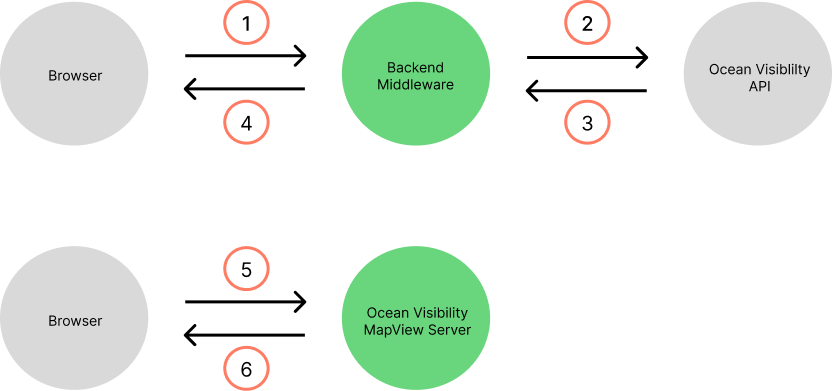
- [1] The browser requests an authentication token from your middleware.
- [2] The middleware receives the request and uses a securely stored Client ID and API Key to request a JWT (JSON Web Token).
- [3], [4] The browser receives the returned token.
- [5] The browser submits a request to the TRADLINX Ocean Visibility Vessel Embedded MapView Server, including the token, using the appropriate request format.
- [6] The map is displayed.
Code Example
- We've provided a sample code snippet for quick testing.
- You may implement this differently, as long as it adheres to the required request specification.
- The code below is for reference only.
<!DOCTYPE html>
<html>
  <head>
    <title>TRADLINX Ocean Visibility Vessel Embedded MapView TEST</title>
  </head>
  <body>
    <form action="https://app.tradlinx.com/partner-mapview/api/vessel" name="viewer_form" id="viewer_form" target="viewer" method="post">
      <div id="oceanVisibilityMap">
        <!-- Input area start -->
        <div>
          <div>Vessel Details</div>
          <div>
            <input type="radio" name="detail" value="SHOW_ALL" id="detailShowAll" checked />
            <label for="detailShowAll">View All</label>
            <input type="radio" name="detail" value="HIDE_TABS" id="detailHideTabs" />
            <label for="detailHideTabs">View Summary</label>
            <input type="radio" name="detail" value="HIDE_ALL" id="detailHideAll" />
            <label for="detailHideAll">Hide All</label>
          </div>
        </div>
        <div>
          <div>Language</div>
          <div>
            <input type="radio" name="lang" value="ko" id="langKo" checked />
            <label for="langKo">Korean</label>
            <input type="radio" name="lang" value="en" id="langEn" />
            <label for="langEn">English</label>
          </div>
        </div>
        <div>
          <div>Vessel Group Filter</div>
          <div>
            <input type="radio" name="trackGroupFilter" value="true" id="trackGroupFilterOn" checked />
            <label for="trackGroupFilterOn">Show filter</label>
            <input type="radio" name="trackGroupFilter" value="false" id="trackGroupFilterOff" />
            <label for="trackGroupFilterOff">Hide filter</label>
          </div>
        </div>
        <div>
          <div>Initial View</div>
          <div>
            <input type="radio" name="startMode" value="LIST" id="startModeList" checked />
            <label for="startModeList">Show vessel list</label>
            <input type="radio" name="startMode" value="HIDE_LIST" id="startModeHideList" />
            <label for="startModeHideList">Hide vessel list</label>
            <input type="radio" name="startMode" value="DETAIL" id="startModeDetail" />
            <label for="startModeDetail">View first vessel details</label>
          </div>
        </div>
        <div>
          <div>Controller Options</div>
          <div>
            <input type="checkbox" name="controllers" value="FULL_SCREEN" id="controllersFullScreen" checked />
            <label for="controllersFullScreen">Full screen</label>
            <input type="checkbox" name="controllers" value="DIMENSION" id="controllersDimension" />
            <label for="controllersDimension">2D / 3D toggle</label>
            <input type="checkbox" name="controllers" value="LANG_SET" id="controllersLangSet" />
            <label for="controllersLangSet">Language toggle</label>
          </div>
        </div>
        <div>
          <div>Tabs in Vessel Details</div>
          <div>
            <input type="checkbox" name="detailTabs" value="PORT_CALLS" id="detailTabsPortCalls" />
            <label for="detailTabsPortCalls">Route tab</label>
            <input type="checkbox" name="detailTabs" value="SAIL_LOG" id="detailTabsSailLog" />
            <label for="detailTabsSailLog">Route log tab</label>
          </div>
        </div>
        <div>
          <div>Search</div>
          <div>
            <select name="searchType" id="selectType">
              <option value="keyword">Keyword</option>
              <option value="trackGroup">Vessel Group</option>
            </select>
            <input type="text" name="searchValue" id="searchValue" />
          </div>
          <div>
            <button type="submit" id="button_map">Search</button>
            <!-- End of input area -->
            <!-- Map view area start -->
            <div id="frame">
              <iframe
                style="border: 1px solid black; height: 700px; width: 100%"
                allowfullscreen
                name="viewer"
              >
              </iframe>
            </div>
            <!-- End of map view area -->
          </div>
        </div>
      </div>
    </form>
  </body>
  <script>
      window.addEventListener("DOMContentLoaded", () => {
        // Create <input type="hidden" /> with the token received from middleware
        fetch("{ Auth token endpoint }")
          .then((item) => item.text())
          .then((authToken) => {
            const input = document.createElement("input");
            input.setAttribute("type", "hidden");
            input.setAttribute("name", "authorization");
            input.setAttribute("value", authToken);
            const form = document.getElementById("viewer_form");
            form.appendChild(input);
          });
      });
  </script>
</html>
MapView Example